Safety and privacy
Keys and recovery
Where your keys live, how to back up your words, and what happens if you lose your phone.
Your wallet is 12 words, your recovery phrase. Hermit makes them on your device, locks them there, and never sends them anywhere. That also means we can’t get them back for you.
Where the keys live
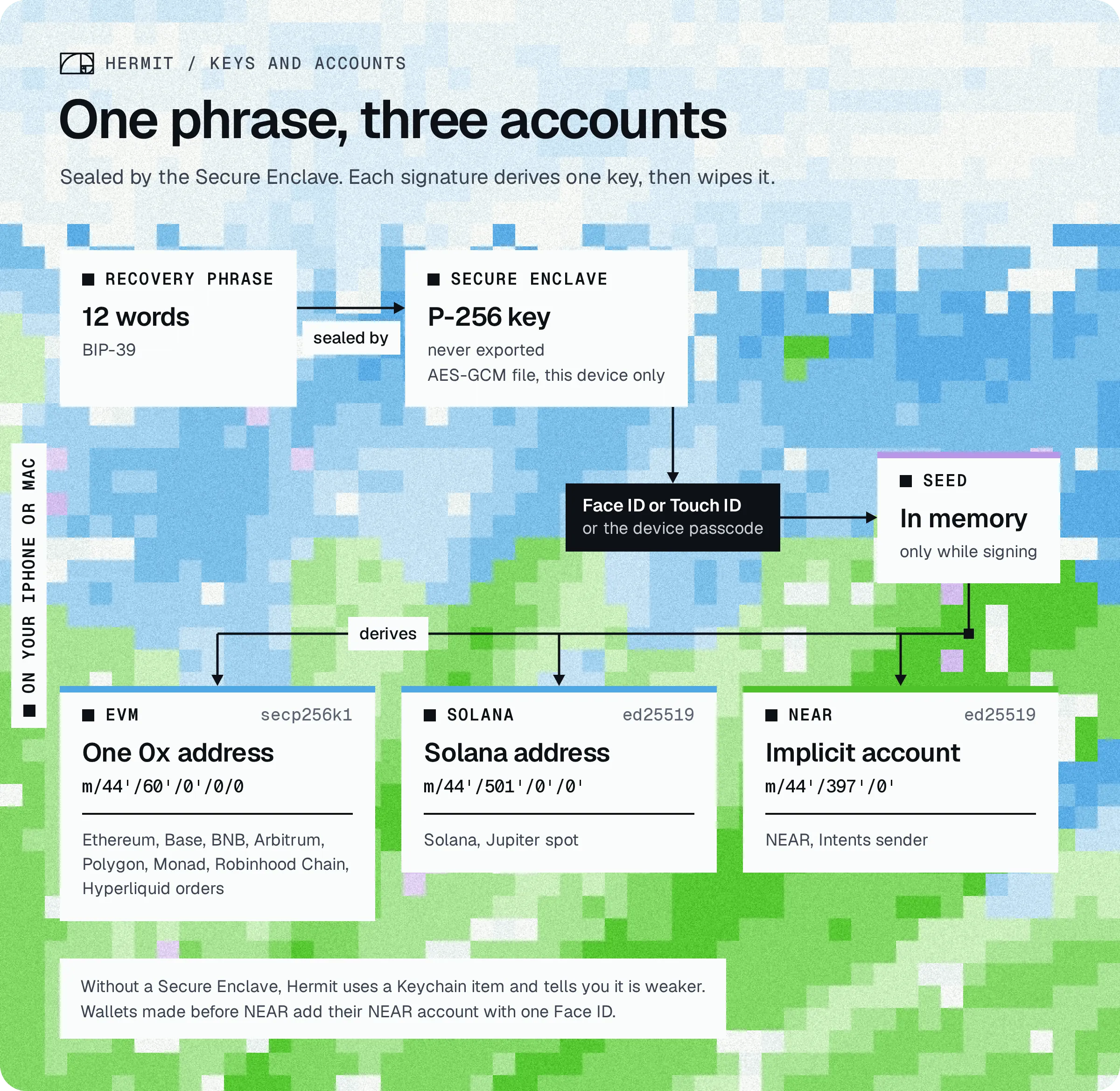
Section titled “Where the keys live”Your iPhone and Mac have a security chip called the Secure Enclave. Hermit asks it to make a key that can’t be copied out of the chip and that it only uses after Face ID, Touch ID or your passcode. Your words are locked with that key and saved as a file in Hermit’s own folder.
So the locked file is useless anywhere else. Copied to another device, there’s no chip key to open it.
When you approve a move, Hermit opens the words, works out the key for that one chain, signs, and wipes both from memory. The assistant never holds a key, so there’s nothing for a trick in a web page or a file to steal.
The details, if you want them
The 12 words come from 16 bytes of the system’s random generator. Those bytes are sealed with AES-GCM under a key agreed (ECDH, then HKDF-SHA256) between a one-off P-256 key and a P-256 key inside the Secure Enclave. The enclave key is created with .privateKeyUsage and .userPresence and is only usable when the device is unlocked, on this device. The sealed file sits in Application Support/Hermit/Wallet and is left out of device backups. Addresses use the usual paths: m/44'/60'/0'/0/0 for EVM, m/44'/501'/0'/0' for Solana and m/44'/397'/0' for NEAR, so the same words give the same addresses in MetaMask and Phantom.
Making a wallet doesn’t need the internet. The Add a wallet sheet shows “Made on this phone” with a live Online or Offline tag. Turn on Airplane mode first if you like, and it reads “Nothing can leave this phone.”
Nothing goes to iCloud
Section titled “Nothing goes to iCloud”Nothing about your wallet syncs to iCloud, and the folder is left out of iPhone and Mac backups. Restoring a backup onto a new phone won’t bring your wallets back. Your written words will.
Back up your words
Section titled “Back up your words”When you create a wallet, Hermit shows the words once and checks you wrote them down.
-
In Wallets, add a wallet and pick Create a new wallet. Give it a name and tap Create wallet.
-
Your recovery phrase shows 12 words. Write them on paper, in order. No screenshots, no cloud notes.
-
Tap I wrote it down.
-
Check your backup asks for two of the words by number. Type them and tap Confirm. A wrong word gets “That doesn’t match. Check the words and try again.”
If you tap Later instead, the wallet works, but its page shows “This wallet’s recovery phrase isn’t backed up. Back it up now.” until you do.
Show the words again
Section titled “Show the words again”-
Open the wallet in Wallets, then the Security tab. The top lines say where the keys are and whether the phrase is backed up, like “12 words, not backed up”.
-
Tap Show recovery phrase. Hermit warns: “Anyone who sees these words can take everything in this wallet. Make sure no one is watching your screen.”
-
Tap Reveal and pass Face ID (Touch ID on a Mac) or your passcode.
-
Write the words down. If the wallet wasn’t backed up yet, tap I wrote it down to mark it. Otherwise tap Done.
Hermit drops the words as soon as the sheet closes, and closing it mid-reveal cancels the reveal.
If you lose your phone
Section titled “If you lose your phone”Your words are the only way back. There’s no account, no copy on a server of ours, and the locked file only opens on the old phone.
-
Install Hermit on the new iPhone or Mac.
-
In Wallets, add a wallet and pick Import a recovery phrase.
-
Type your 12 or 24 words and tap Import. You get the same EVM, Solana and NEAR addresses, with everything still on them.
If someone might have seen your words or has your unlocked phone, import them, then move everything to a new wallet with new words.
Removing a wallet
Section titled “Removing a wallet”Remove from this phone in the Security tab deletes the wallet’s keys from the device. If the words are backed up, you can import them again any time. If not, Hermit says so before you confirm: “Its words aren’t backed up: once removed, this wallet and anything on it can’t be recovered.” and offers Back up words first.
Devices without a Secure Enclave
Section titled “Devices without a Secure Enclave”Every iPhone that runs Hermit and every Apple silicon Mac has a Secure Enclave, so you won’t normally meet this. Where there isn’t one (the iPhone simulator, for example), Hermit keeps the words as a Keychain item instead, readable only after Face ID, Touch ID or the passcode. On a Mac in that case the check can be done by the app rather than by the chip. It’s weaker, and that’s why the Secure Enclave is the default wherever there is one.