Use Hermit
Wallets
Your balance, the Tokens, Gas, Activity and Security tabs, and how to send and receive.
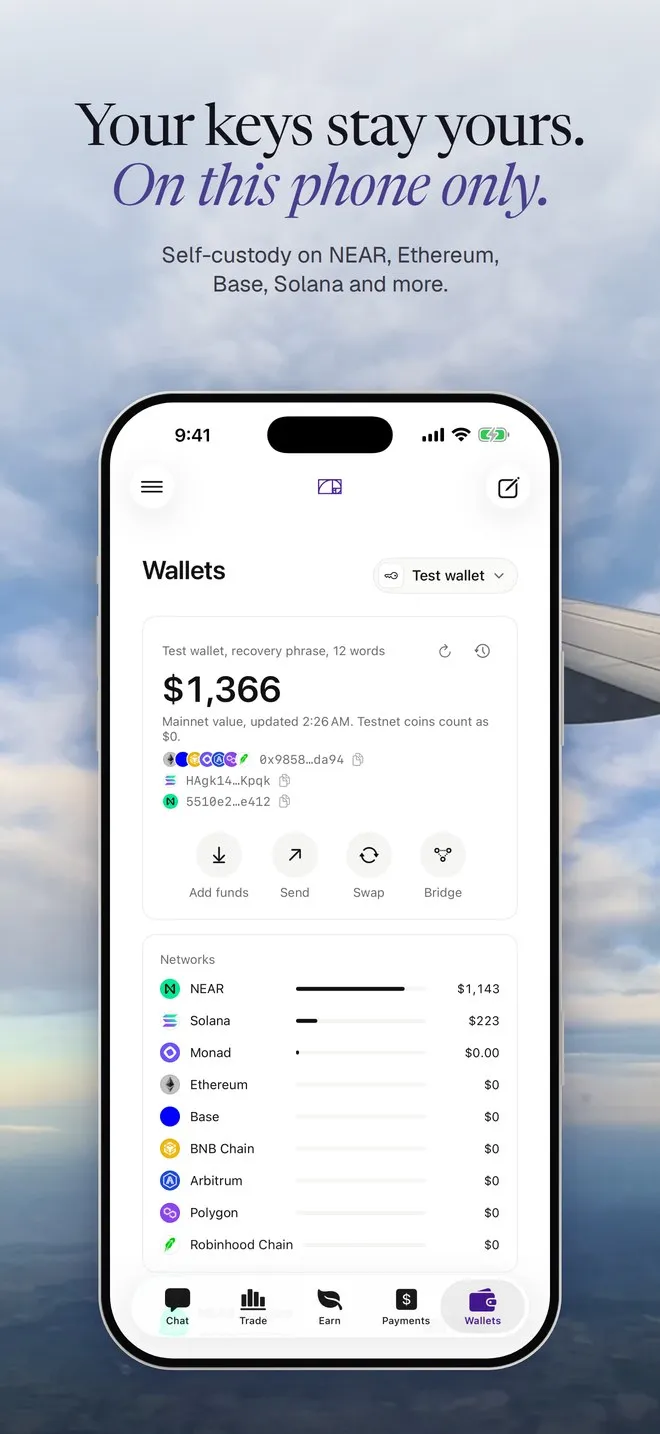
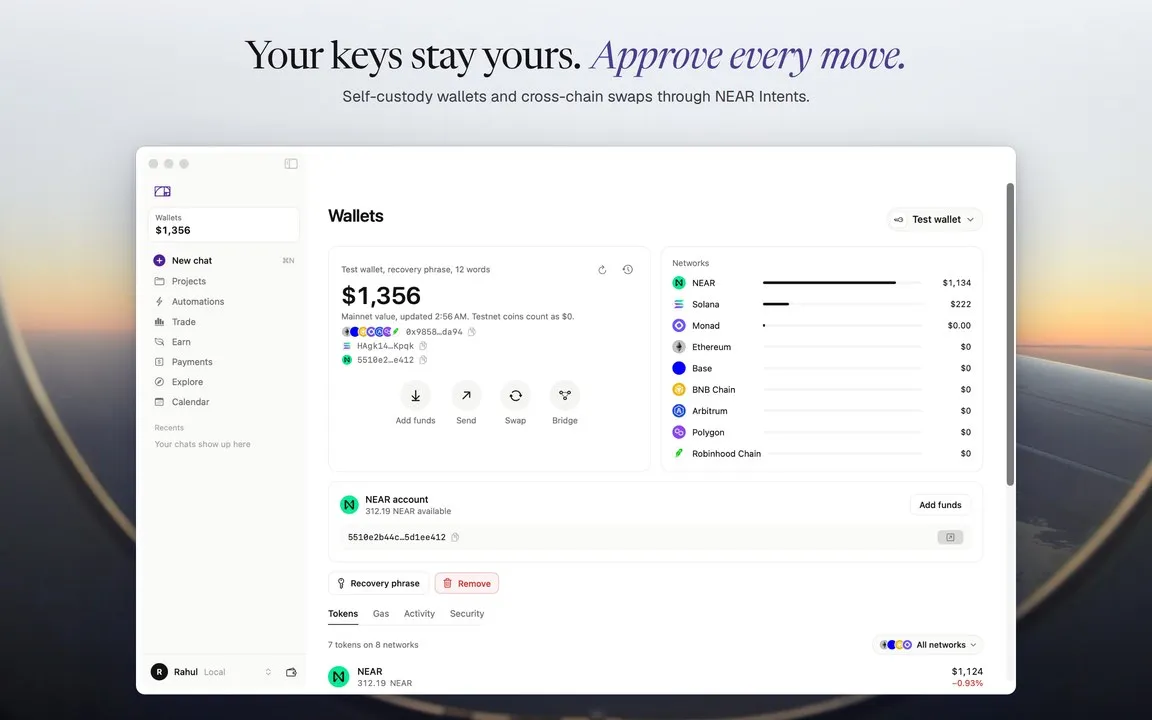
Wallets is where your money is. On iPhone it’s the last tab at the bottom. On a Mac, click the balance at the top of the sidebar.
If you haven’t made a wallet yet, start with Your wallet.
The balance card
Section titled “The balance card”The big number is what your wallets hold on mainnets, in dollars. It also counts your Hyperliquid account and your Aave deposits, and the line under it says so (“Includes $6.00 on Hyperliquid and $1.00 in Aave”). Testnet coins count as $0.
Under the number are your addresses: one EVM address for every EVM network, a Solana address and, if you added one, your NEAR account. Tap one to copy it.
Then the buttons: Add funds, Send, and once you hold something on a mainnet, Swap and Bridge. Before that, you get Try a quote instead. The clock icon at the top opens your history, and the arrow refreshes.
With more than one wallet, the page starts on All wallets and the picker at the top switches between them.
The four tabs
Section titled “The four tabs”Open one wallet and you get four tabs.
Every token you hold, grouped across networks, with its dollar value. The network menu narrows it to one network. Tap a token to send, receive or swap it.
The coin each network needs for fees, per network. An empty one says “Empty: sends on Base need ETH for fees”. To refill, send that coin to your address from Add funds.
What came in and went out, and what Hermit did. It has its own page: Activity.
How the keys are kept, the recovery phrase (shown after Face ID), the derivation paths, your spending policy, an optional NEAR Intents partner key, and Remove from this phone.
- Tap Send. Pick the wallet, the network and the token.
- Fill in Address. You can paste, scan a QR code (the viewfinder button, iPhone only), type an ENS name like
alice.eth, a NEAR account likealice.near, or pick one of your saved addresses. - Read the line under the address before you go on. It tells you what Hermit sees.
- Type the amount, or tap 25%, 50% or Max.
- Tap Review. Hermit simulates the transfer first, then the review opens. Approve with Face ID (Touch ID on a Mac).
The line under the address is worth a look every time:
| You see | It means |
|---|---|
| “New address. Double-check before sending.” | You’ve never sent here. Check it character by character. |
| “Your own wallet: Savings” | It’s one of your wallets. |
| “Saved: Rent” | One of your saved addresses. |
| “ENS name: resolved on Ethereum at Review.” | The review shows the address it points to. |
| “That is a Solana address. Pick a Solana network…” | Wrong network for that address. |
| “Not a valid Base address” | A typo, or something that isn’t an address. |
A saved address (or a payee from Payments) can be picked from your list 24 hours after you save it. Until then it shows a “24h hold” tag. Turn on Whitelist only in Send and Hermit will only send to your own wallets and to saved addresses that are past their hold.
Receive
Section titled “Receive”Tap Add funds (or Deposit in All wallets), pick the network and copy the address or show the QR code. The same EVM address works on every EVM network Hermit supports, so only send assets on the network you picked. Add funds covers the rest, including funding from any chain through NEAR Intents.