Use Hermit
Private Cloud
Send bigger questions to a NEAR AI Cloud enclave, after your device checks its proof.
On-device is the default. When a question is too big for the model on your phone, you can switch that chat to Private Cloud. Your message then goes to an open model on NEAR AI Cloud, running inside a hardware enclave (a TEE), and only after your device has checked the enclave’s proof.
Turn it on
Section titled “Turn it on”- Tap the model name next to Send in the chat box.
- Pick Private Cloud (“NEAR AI, in a verified enclave (TEE)”).
- You’ll see “Private Cloud on. The enclave is checked before every message”. The chat box now says Private Cloud with a small shield.
To go back, pick On-device in the same menu (“On-device: nothing leaves this phone”). The switch is also in Settings, then Cloud, as “Use Private Cloud in chat”.
What changes
Section titled “What changes”Only where the answer is written changes. Your message and the chat so far go to the enclave over HTTPS. Hermit has no server, so the chat itself still lives only on your device.
The tools don’t move. Balances, quotes and reviews still run on your device under the same rules, the same spending policy and the same approval screen. A money move from Private Cloud only prepares a review, and you approve it with Face ID (Touch ID on a Mac), as always.
What leaves the device has both modes side by side.
The key
Section titled “The key”Private Cloud needs a NEAR AI Cloud API key. TestFlight builds carry a shared key, so you can try it without signing up. The shared key gives each device 30 free messages a day, and Settings, then Cloud shows how many are left.
When they run out, Hermit doesn’t send your message. It tells you so, and you can switch to On-device or add your own key:
- Get a key at cloud.near.ai (Get a key opens it). NEAR Builders members can claim $10 of credit.
- Open Settings, then Cloud, and paste it into “NEAR AI Cloud API key”.
- Tap Save. Hermit checks the key with NEAR first and only then stores it in the Keychain on this device. You’ll see “Key saved on this phone”.
With your own key there’s no daily limit from us. Remove deletes it.
The proof chip
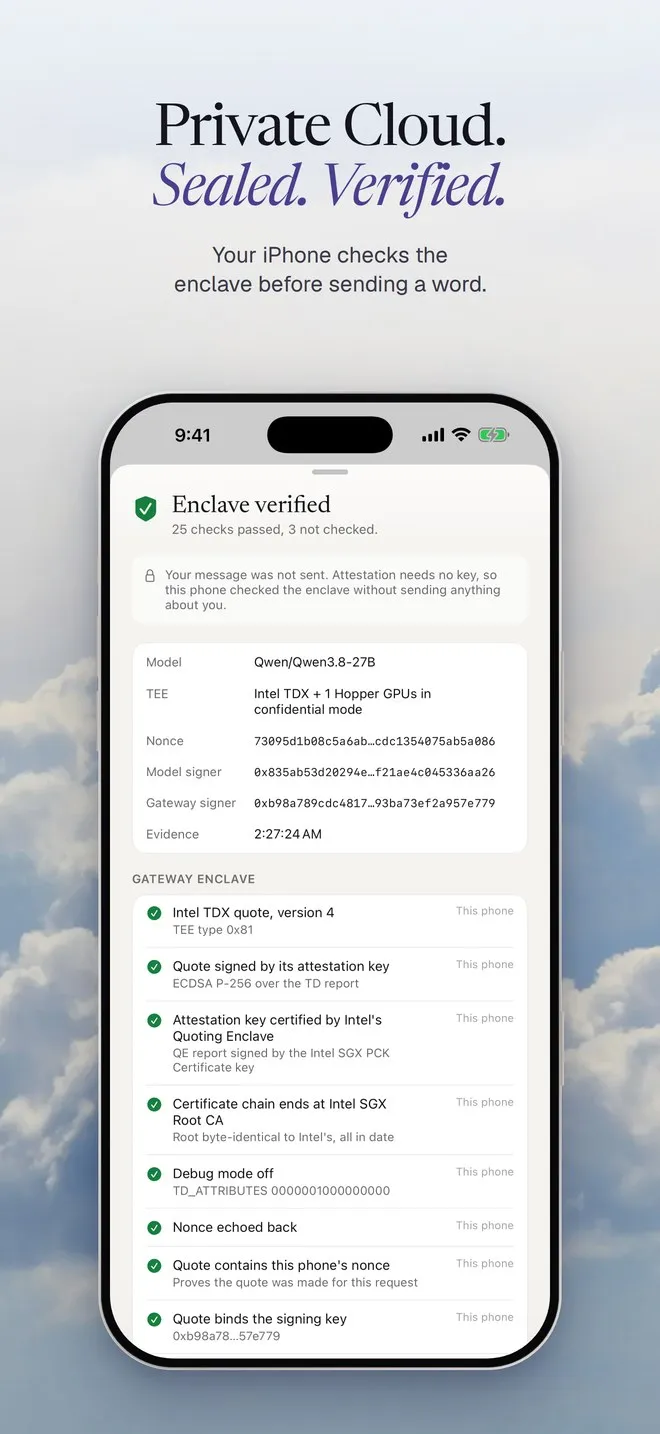
Section titled “The proof chip”Each Private Cloud reply ends with a small chip. Before every message, your device fetches fresh evidence from the enclave with a new random number and checks it. After the reply, it checks the reply’s signature too. You’ll see those as steps:
Compare Aave and Kamino for USDC yield
- Checking the enclave
- Looking up yields
- Checking the reply's signature
The answer, then a chip that reads Verified in a TEE and the model’s name.
Tap the chip to see every check: the model, the kind of TEE, the nonce, who signed, and a row per check marked by where it ran (your device or NVIDIA). If a check fails, the chip says Not verified and nothing more is sent.
You can run the same check without sending anything. In Settings, then Cloud, tap Check again, then See checks. No key is needed for that.
The full story, and how to check it yourself, is on The Private Cloud proof.